
10 Common Divi 5 Performance Problems and How to Fix Them


Divi has grown into one of WordPress’s most popular page builders by giving non-developers the power to design bespoke pages with true drag-and-drop simplicity.
With Divi 5, Elegant Themes has made major strides in performance, introducing a faster core, cleaner output, and a more efficient builder experience. In many cases, Divi 5 sites are noticeably lighter and quicker than earlier versions.
That said, better performance does not mean perfect performance. Even with Divi 5, it’s still possible to end up with a site that feels like a fully loaded truck trying to pull away at a traffic light if it’s not configured and used carefully.
Slow load times frustrate visitors, hurt search rankings, and can make you question whether you should have gone with a leaner theme.
The good news is that most Divi 5 speed issues are not caused by the theme itself.
This guide highlights common performance pitfalls along with practical fixes. Applying even a few of these tips can turn a sluggish Divi 5 site into a much smoother performer.
1. Budget or shared hosting
Here’s the thing about budget hosting: you get what you pay for.
When you’re spending a few dollars a month on shared hosting, you’re literally sharing server resources with hundreds of other websites. When one of your “neighbors” gets a traffic spike, your site crawls to a near-halt.
Hosting quality is often the single most important factor in site performance. Time to First Byte (TTFB) – the time it takes for your server to start sending data – tells the whole story. If you’re seeing TTFB values above 600ms, your hosting is the bottleneck.
What actually works
Move to managed WordPress hosting from providers like SiteGround, Flywheel, or Cloudways.
These hosts are specifically optimized for WordPress and often include server-side caching and CDN integration right out of the box.
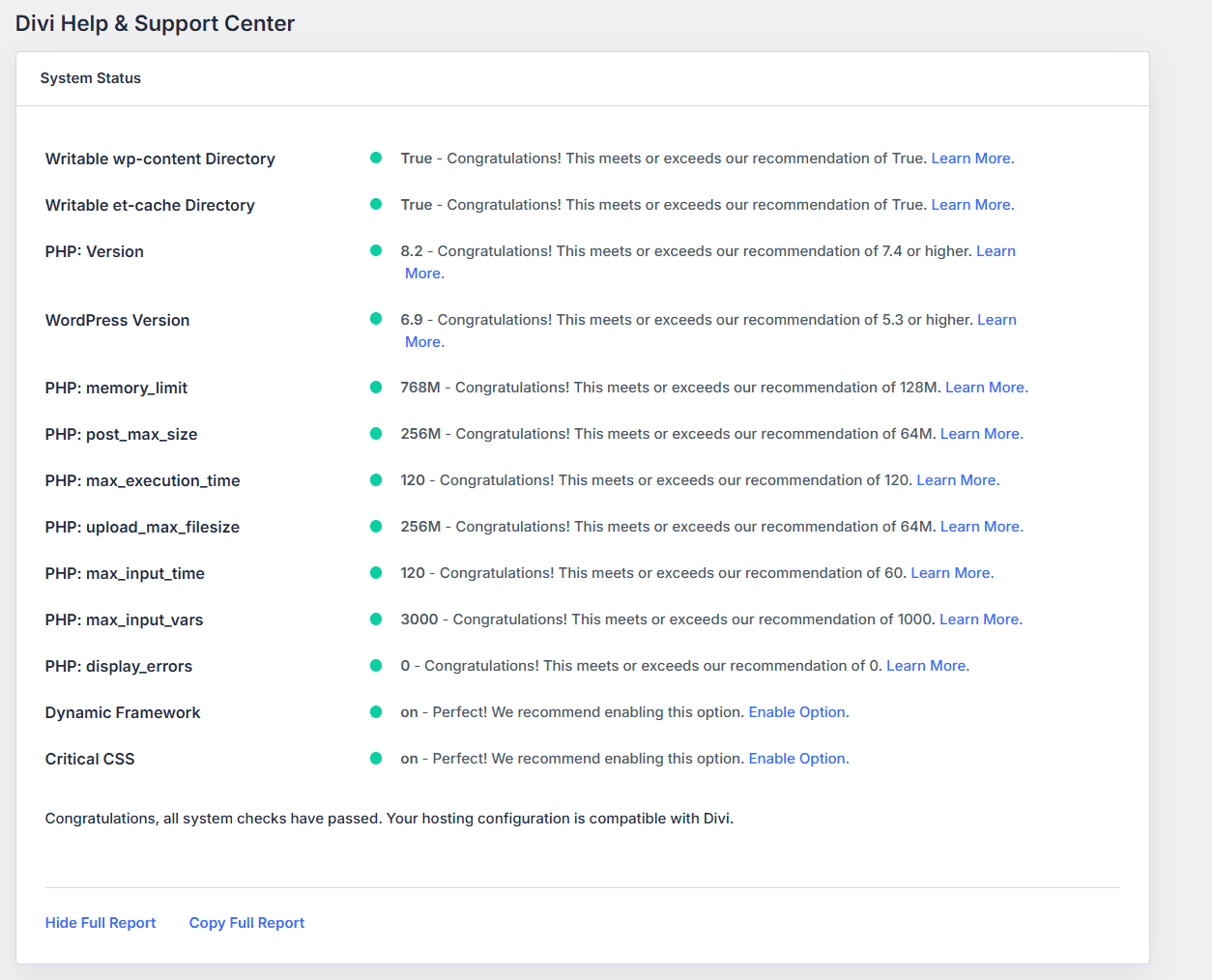
Make sure your server runs PHP 8.0 or higher. Elegant Themes’ speed optimization guide confirms that upgrading PHP versions alone can dramatically reduce processing overhead.
Tip: Compare your system status with Divi’s requirements under Divi > Support Center > Show Full Report.
Those are minimum values. For best performance, run PHP 7.4+ with at least 128MB PHP memory limit. More is better.
2. Unoptimized images
Divi makes it ridiculously easy to add beautiful images to your pages. Too easy, perhaps.
The builder doesn’t automatically optimize those images, which means that 5MB photo from your camera gets downloaded in full every single time someone visits your page.

Large images are typically the biggest performance killers on any website. Before uploading anything, compress your images using tools like ShortPixel Image Optimizer. It can compress images and automatically generate next-gen WebP and AVIF versions.
Here’s a practical approach
Resize images to the dimensions you actually need before uploading them. A 2,000-pixel-wide image is more than sufficient for full-width hero sections. For featured images in blog posts, 1,080 pixels wide is plenty.
Divi has a built-in lazy load feature under Divi > Theme Options > General > Performance that delays loading images until they’re about to scroll into view – turn this on immediately.
For a more comprehensive solution, consider FastPixel, a cloud-based optimization plugin from the ShortPixel team that handles image optimization, caching, Critical CSS, and CDN delivery all in one package. As detailed in their plugin comparison guide, FastPixel processes optimizations in the cloud rather than on your server, which means your hosting resources stay available for actual visitors.
3. No caching
Every time someone visits your WordPress site without caching, the server rebuilds the entire page from scratch: it queries the database, executes PHP code, assembles HTML, loads CSS and JavaScript. This process happens over and over again, burning through server resources and making visitors wait.
Multiple Divi optimization experts emphasize that caching is absolutely critical for maintaining acceptable performance. A good caching plugin creates static versions of your pages and serves them instantly to visitors without touching the database at all.
For comprehensive optimization, FastPixel handles image optimization, caching, Critical CSS, and CDN delivery in one cloud-based plugin. Unlike traditional plugins that process optimizations on your server, FastPixel processes everything in the cloud, keeping your hosting resources available for actual visitors.
Boost performance with FastPixel!
Optimize loading times, enhance user experience, and give your website the performance edge it needs.
4. Too many plugins
Every plugin you install adds code, styles, database queries, and potential conflicts. According to performance testing on Divi sites, using more than 20 plugins can seriously impact load times, with each one contributing additional overhead.
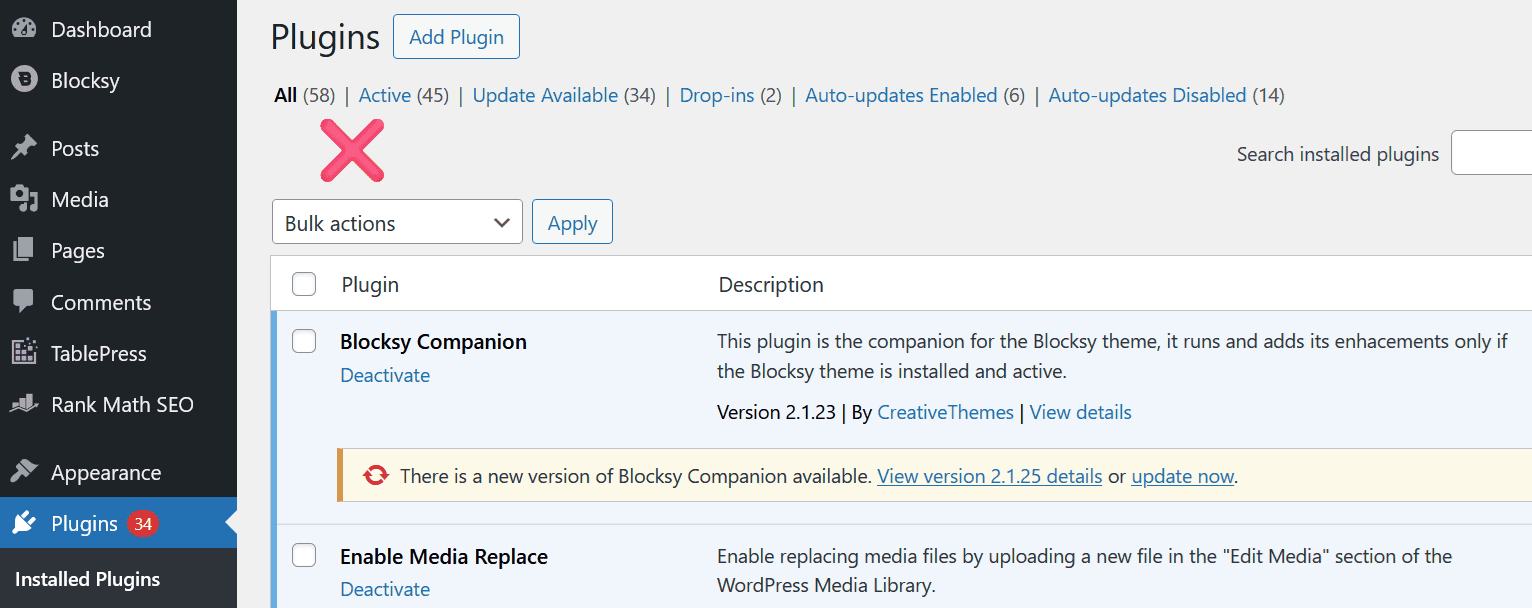
Here’s how to approach this: regularly audit your plugins and delete anything you’re not actively using. Look for lightweight alternatives.
For instance, if you only need a simple contact form, you don’t need a full form builder suite. Disable features within plugins that you’re not using, such as XML sitemaps in Yoast if you’re already generating them elsewhere.
5. Outdated WordPress, Divi, or PHP Version
Running old versions of WordPress, the Divi theme, or PHP creates security risks and can severely impact performance.
How to fix
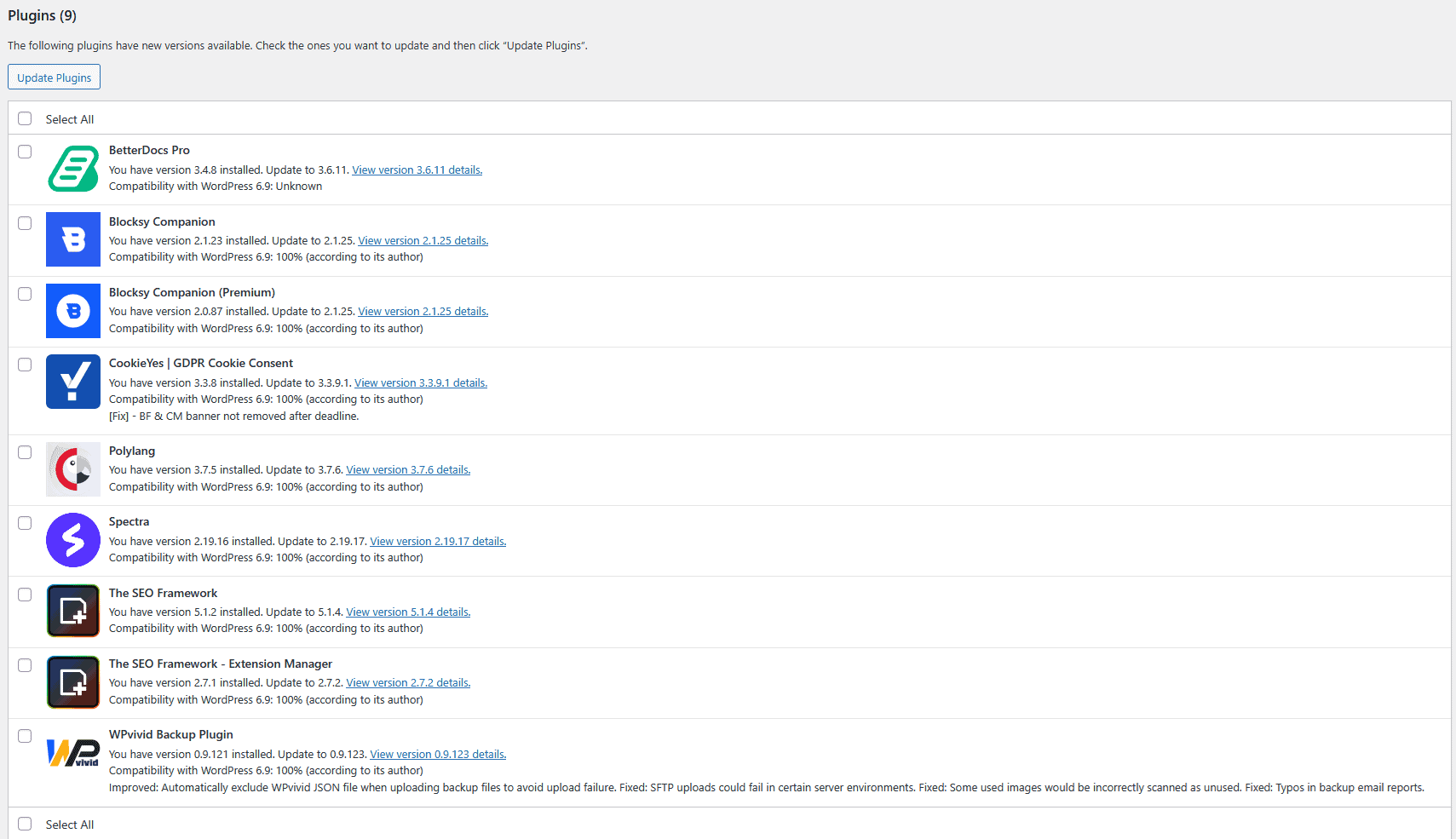
- Update WordPress core, themes and plugins regularly through the dashboard. Set a maintenance schedule so updates don’t pile up.
- Verify that your hosting environment runs PHP 7.4 or higher. Higher PHP versions offer significant performance gains.
- Test updates on a staging site first to avoid breaking your production site.
6. Not using Divi 5 performance settings
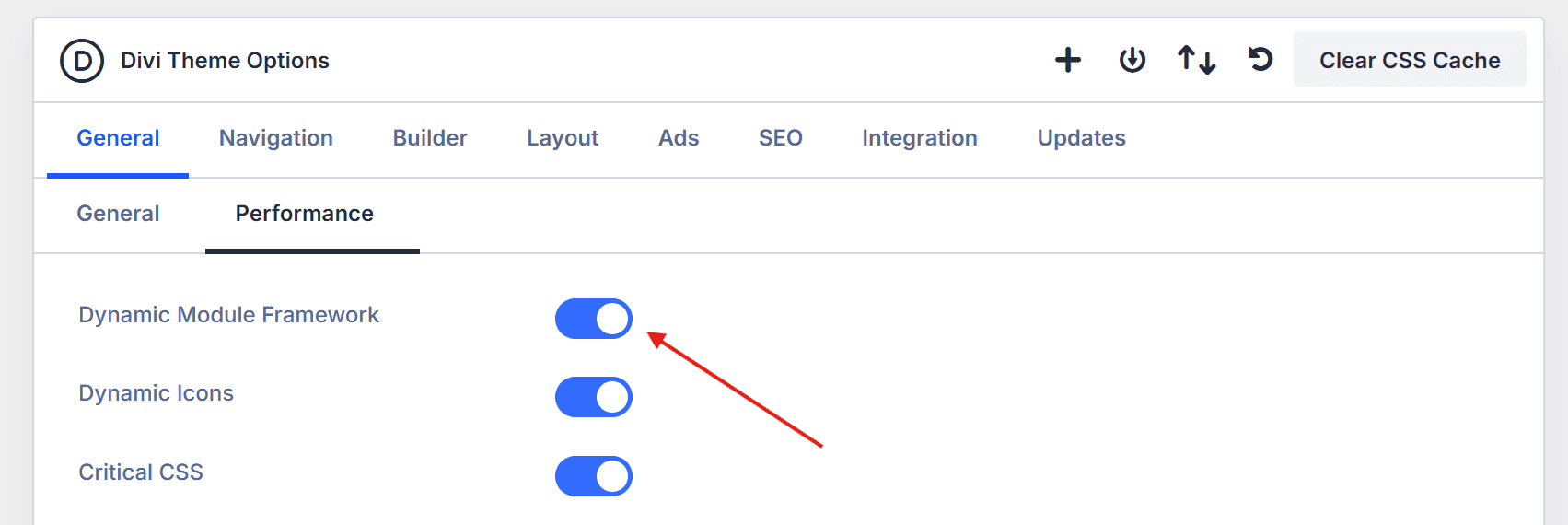
Divi 5’s performance settings look different from Divi 4. Gone are the Static CSS File Generation and some other legacy options. Here’s what you actually have in Divi > Theme Options > General > Performance
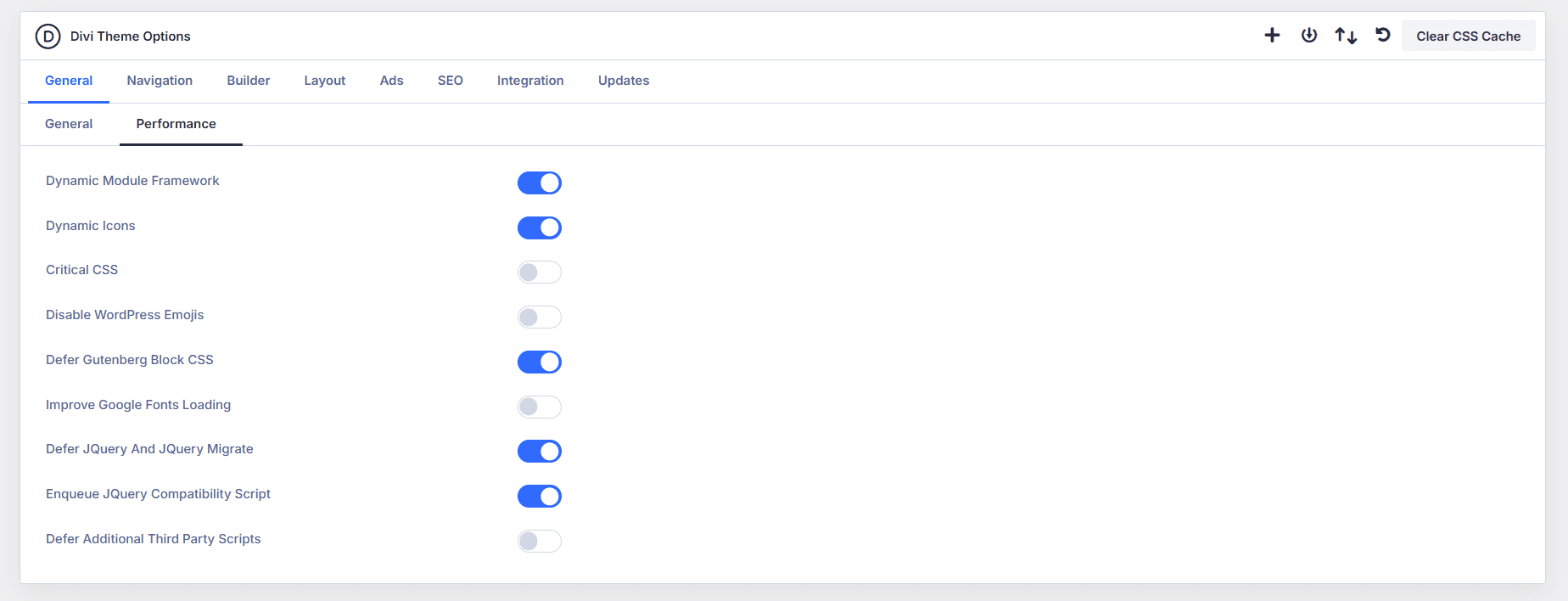
Dynamic Module Framework: One of the most important settings you need to enable. It loads only the modules and features actually used on each page instead of loading everything. If your page uses 5 of Divi’s 50+ modules, only those 5 modules’ code loads.
Dynamic Icons: Enable this. Loads only the icon subsets your pages actually use instead of the entire icon font. Disable this only if you’re using a child theme or third-party module that requires the full icon set.
Critical CSS: This automatically separates critical above-the-fold styles from non-critical CSS and defers everything else. Enable this unless your caching plugin handles Critical CSS (for example, if you use FastPixel, you can disable this).
Critical Threshold Height: This setting determines where Divi draws the line for “above the fold” content. The default (Low/Medium/High options) works well for most sites. Adjust this only if you’re experiencing layout shifts.
Disable WordPress Emojis: Most sites don’t need emoji support. Enable this unless you specifically use emojis in your content.
Defer Gutenberg Block CSS: If you prefer the Classic Editor, you should disable Gutenberg completely using a plugin like Disable Gutenberg rather than just deferring its CSS.
Improve Google Fonts Loading: This caches Google Fonts and loads them inline, removing a render-blocking request. Enable this unless you’re hosting fonts locally (which is even better – more on that below).
Defer jQuery And jQuery Migrate: This moves jQuery out of the header and loads it asynchronously in the footer when it’s not needed in the header. Enable this, but disable it if it breaks functionality on your site.
Defer Additional Third Party Scripts: Enable this to defer non-critical third-party scripts. Test your site after enabling to ensure nothing breaks.
In short, the recommended settings are:
- Dynamic Module Framework: ON
- Dynamic Icons: ON
- Critical CSS: OFF if your cache plugin handles this, ON otherwise
- Disable WordPress Emojis: OFF (let your cache plugin handle this to avoid duplicate features)
- Defer jQuery: ON
7. Layouts that are too complex
Divi 5’s visual builder encourages experimentation, and it’s easy to get carried away with nested sections and elaborate layouts. Each module still loads its own CSS and JavaScript, which compounds quickly.
Practical advice: Combine sections where possible, remove unnecessary modules, and reuse global elements instead of recreating designs repeatedly. Use Divi’s Presets and Global Styles to apply consistent styling across modules, which reduces duplicate CSS.
When designing, consider each element’s purpose. Every animation, effect, and module should serve a clear function. If it’s just visual flair that doesn’t guide attention or convey meaning, consider removing it.
According to Divi performance guides, limiting the types of modules you use helps. For example, if you can achieve the same result with two text modules instead of a text module and a blurb module, don’t needlessly process the blurb module.
8. CSS and JavaScript Optimization
Unlike Divi 4, which included minification and combination options for CSS/JavaScript files, Divi 5 handles asset optimization differently through its Dynamic Module Framework.
The old “Minify and Combine” settings are gone because Divi 5’s architecture already loads only what’s needed.
For additional optimization beyond Divi’s built-in features, use a plugin like FastPixel or Autoptimize to handle assets from other plugins and themes.
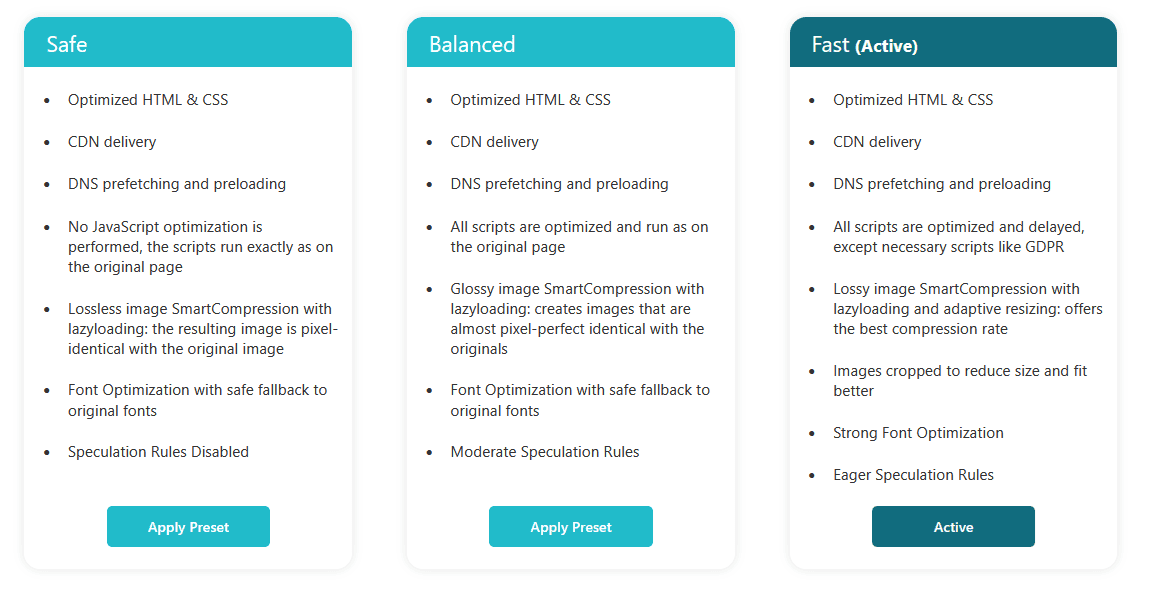
If you use FastPixel, select a preset like Balanced or Fast for both CSS & JS optimization.
If you’re using WP Rocket, be careful with the “Remove Unused CSS” feature. You need to exclude Divi’s dynamic stylesheets to prevent breaking your design.
When delaying JavaScript, you must exclude critical Divi files to avoid breaking functionality. Exclude files like /Divi/js/scripts.min.js and et_pb_custom.
9. No CDN and GZIP compression
If your server is in New York but half your visitors are in Australia, those visitors experience significantly slower load times due to physical distance. A CDN caches content across a global network so it’s delivered from the nearest location.
Enable a CDN through your host or use services like Cloudflare or BunnyCDN.
FastPixel includes CDN delivery as part of its core functionality.
GZIP compression reduces the size of HTML, CSS, and JavaScript files before they’re sent to browsers. Many hosts enable this by default, but verify using GTmetrix. If it’s not enabled, add GZIP compression rules to your .htaccess file, or enable it through your hosting control panel.
10. Unoptimized fonts and external resources
Using multiple font families and loading Google Fonts externally adds HTTP requests that can block rendering. The performance impact of web fonts is well-documented, and solutions exist.
Disable Google Fonts in Divi’s general settings.

After that, download and self-host the fonts you actually use. Convert them to WOFF2 format (the most efficient web font format) and upload them to your server. Preload critical fonts using the <link rel="preload"> tag or through your caching plugin’s settings.
Reducing font variety helps too. Stick to two font families maximum. Every additional font family means more requests and longer load times.
Measuring progress
None of these optimizations matters if you can’t measure their impact.
Test your site regularly with Google PageSpeed Insights, GTmetrix, or Pingdom. Run multiple tests and look at averages rather than single results, since server load can vary.
Focus on real-world metrics: Time to First Byte, First Contentful Paint, Largest Contentful Paint, and Total Blocking Time. These Core Web Vitals directly impact how Google ranks your pages and how users experience your site.
Conclusion
The architectural improvements in Divi 5 are real.
The elimination of shortcodes, the 94% reduction in CSS size (from 860KB to 54KB), the halving of JavaScript file size, and the modular framework that loads only what’s needed.
But Divi 5’s improved architecture doesn’t eliminate the need for proper hosting, optimized images, effective caching, and thoughtful design. The builder sits on top of WordPress, which sits on top of server software, which sits on top of hosting infrastructure. Each layer matters.
Start with hosting and caching.
Those deliver the biggest improvements with the least effort. Then work through image optimization, plugin cleanup, and Divi’s performance settings. Enable the Dynamic Module Framework, optimize your fonts, and use a quality optimization plugin to handle assets from themes and plugins.
If you want a comprehensive solution that handles most optimizations automatically, FastPixel was built specifically for this use case. It combines image optimization from the ShortPixel team with caching, Critical CSS, and CDN delivery in a single cloud-based plugin designed for simplicity.
The faster your site loads, the longer visitors stay, the better it ranks, and the more conversions you generate.
Get an instant performance boost!
Improve page load time and give your website the performance edge it needs.


 English
  French