
How to Clean Up Your WordPress Blog’s Links for Better SEO


If your WordPress blog has been around for a while, your links have probably accumulated problems you don’t even know about.
Affiliate programs you promoted three years ago don’t exist anymore. You changed your permalink structure at some point and never went back to update the internal links. Google’s rules about link attributes evolved, and some of your older posts never caught up.
These aren’t the kind of problems that announce themselves. Instead, this happens:
- A reader clicks an old affiliate link and lands on a 404.
- Google sees you passing authority through links that should be marked as paid.
- Your internal links are quietly routing through redirects instead of going straight to the right page.
None of it is visible from your dashboard, but all of it affects how search engines evaluate your site.
The good news is that these issues are fixable, and fixing them can produce a noticeable improvement in how search engines treat your site.
Here’s what to look for and how to clean it up.
Affiliate and sponsored links missing nofollow tags
Google expects links that exist because of a commercial relationship (affiliate links, sponsored mentions, paid placements) to carry a rel="nofollow" or rel="sponsored" attribute. This tells Google not to pass PageRank through those links, since they weren’t earned editorially.
If your blog has affiliate links without these attributes, you’re essentially vouching for those URLs with your site’s authority in a way that Google considers a violation of their link spam policies. This can result in a manual action, which is Google’s term for a penalty that tanks your search visibility.
This is one of those problems that grows over time. You might have been diligent about adding nofollow when you started, but then you switched affiliate networks, changed themes, or let a guest author publish a post without double-checking. It only takes a handful of bare affiliate links to put you at risk.
How to audit your links for nofollow compliance
Screaming Frog is the most efficient tool for this. Crawl your site, go to the Outlinks tab, and filter for external links. Look at the Rel column. Any affiliate or sponsored link that doesn’t show nofollow or sponsored is a problem.
You can also spot-check by hand. Right-click on an affiliate link in one of your posts, select Inspect, and look at the <a> tag. You’re looking for rel="nofollow" or rel="sponsored" (or both). If you just see rel="" or no rel attribute at all, the link is “followed,” meaning Google treats it as an editorial endorsement (and link juice flows from you to the brand along with opening you up for a potential problem).
Common affiliate domains to check for include links to Amazon, ShareASale, CJ Affiliate, Impact, and any brand-specific affiliate program you use.
How to fix missing nofollow tags
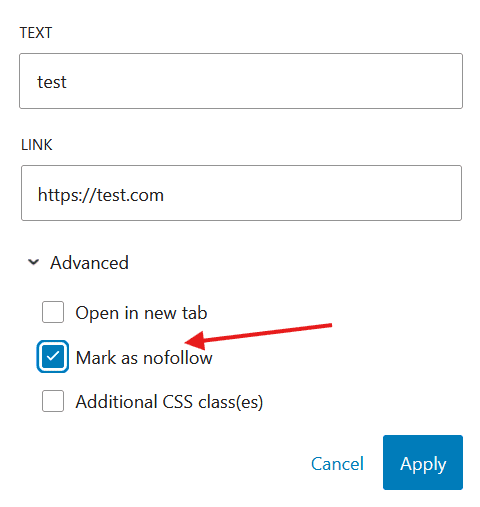
If you only have a handful of posts with this problem, you can fix it by editing each post. Click on a link in the block editor, and you’ll see a Mark as nofollow checkbox in the link settings under Advanced dropdown. Check it for every affiliate link. WordPress added this natively in version 6.5, so you don’t need a plugin to do it.
If you need to add nofollow attributes across hundreds of existing posts, say to every Amazon link or every link pointing to a specific affiliate domain, that’s where a bulk approach becomes necessary. The Blog Fixer’s NoFollow Fix scans your entire blog and adds the correct attributes to all monetized links at once, with the ability to target specific domains or URL patterns.
Broken links from defunct affiliate programs
Your affiliate programs probably haven’t stayed the same the whole time you’ve been blogging. Companies get bought, programs shut down without much warning, and merchants drop out of networks. But your blog posts are still pointing readers to those URLs.
Every broken link is a small failure of trust. A reader follows your recommendation, clicks through, and lands on a 404 page or a domain parking page. They’re not going to come back and try a different link in your post. They’re going to leave.
From an SEO perspective, broken outbound links aren’t a direct ranking factor, but they contribute to what Google considers a poor user experience.
How to find broken links
You have several good options:
- Google Search Console reports broken internal links under Pages > Not Found. This won’t catch broken outbound links, but it’s a solid starting point for internal link health.

- Screaming Frog crawls your site and reports the HTTP status code for every link it finds. Filter for 4xx (not found) and 5xx (server error) responses.
- Ahrefs Site Audit flags broken links as part of its standard crawl and can distinguish between internal and external broken links.
- Broken Link Checker is a free WordPress plugin that monitors your links automatically in the background. It’s useful for ongoing monitoring, though running it on a large site can slow things down since it’s constantly checking URLs.
How to fix them
There’s no shortcut to evaluating each broken link individually. For each one, you need to decide:
- Is there a replacement? If the affiliate program moved to a new URL or a different network, update the link.
- Is the product still available elsewhere? Look for a new affiliate program for the same product, or link to the new source.
- Is the link no longer relevant at all? Remove it entirely, or swap it for a non-affiliate link to a useful resource so the reader still gets something out of clicking.
For a blog with a long history of affiliate content, this can mean hundreds of broken links. The Blog Fixer’s Dead Affiliate Program Fix is built for exactly this scenario, replacing or removing links to specific domains across your entire blog in a single pass.
The worst thing you can do is nothing. Broken links don’t fix themselves, and they accumulate faster than most people realize.
Internal links triggering unnecessary redirects
This one is sneaky. Your internal links might not be broken. They still get the reader to the right page. But they’re taking a detour to get there.
Here’s how it happens. You change your permalink structure, or you update a post’s slug, or WordPress adds a trailing slash that wasn’t there before. WordPress creates a 301 redirect from the old URL to the new one. That redirect works, so everything seems fine.
But every internal link that still uses the old URL now forces the browser to make two requests instead of one: first to the old URL (which returns a 301), then to the new URL (which returns the actual page). Multiply that by every internal link in a post, and you’re adding unnecessary latency to every page load.
This also wastes a small amount of link equity on each redirect. Google has said that 301 redirects pass most PageRank, but “most” isn’t “all.” When you’re redirecting links across hundreds of posts, those small losses add up.
How to find redirect chains in your internal links
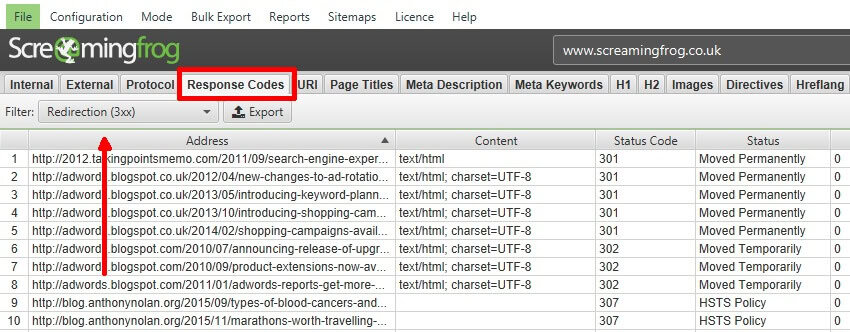
Screaming Frog makes this straightforward. Crawl your site, go to Response Codes > Redirection (3xx), and look at the Inlinks tab. This shows you which internal links point to URLs that redirect instead of resolving directly.
You can also test individual links by hand. In Chrome DevTools, open the Network tab, click an internal link, and look at the request chain. If you see a 301 response followed by a 200, that link is going through a redirect.
How to fix them
The fix is simple in concept: update each internal link to point to the current URL so the redirect isn’t needed.
In practice, that means opening each post that has an outdated internal link and replacing it, which gets old fast when you have hundreds of them.
For a small blog, you can do this by hand. For a blog with years of internal cross-linking, you’ll want either a search-and-replace approach or a service.
A plugin like Better Search Replace can swap old URL patterns for new ones, but you’ll need to know the exact URL patterns to search for and run it separately for each one. The Blog Fixer’s Internal Permalink Redirect Fix identifies every internal link going through a redirect automatically and updates them all to the correct URLs.
Cleaning up redirect chains also helps your overall site speed. It’s one of those invisible optimizations that won’t be obvious to readers, but it reduces server load and improves how efficiently search engines can crawl your site.
Too many new tabs and inconsistent link behavior
This is more of a user experience issue than a pure SEO problem, but it affects how readers interact with your content, and bounce rate is something Google watches.
On most blogs, there’s no consistent rule for how links behave. Some open in a new tab, some don’t. A reader clicks three links in your post and gets a different experience each time. That inconsistency is the problem.
The old conventional wisdom was that all external links should open in a new tab. But that creates tab fatigue. A reader clicks a few links while reading your post, and suddenly they have eight tabs open. It’s cluttered and disorienting, and it takes control away from the reader.
Why affiliate links are the exception
The one category that genuinely benefits from opening in a new tab is affiliate links. When a reader clicks a product link, they’re usually browsing, not leaving. They want to check out the product and then come back to finish your post. A new tab preserves their reading context so they don’t have to find their way back.
Everything else, including editorial links, internal links, and resource links, should open in the same tab. This keeps the browsing experience clean and lets readers decide for themselves when they want a new tab (they can always long-press on mobile or ctrl-click on desktop).
A better approach:
- Affiliate links open in a new tab (
target="_blank"). Preserves the reader’s place in your content while they browse a product. - Everything else opens in the same tab. Fewer tabs, less clutter, more reader control.
When a link does open in a new tab, readers should know about it before they click. A small external link indicator (the arrow icon you see on some sites) signals that the link will open a new tab. It’s a small touch, but it builds trust and avoids the jarring surprise of an unexpected new tab.
How to standardize your link targets
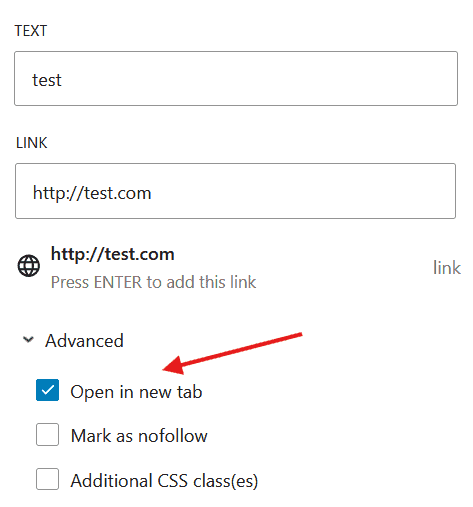
In the WordPress block editor, click on a link and toggle the Open in new tab option. For new content, just be deliberate about this as you write.
For existing content, there’s no native WordPress tool to audit or bulk-change link targets. This is one of those things you’d need to either handle through search-and-replace in the database (only if you speak “Tech”, because a wrong regex can break your posts) or hand it off to a service.
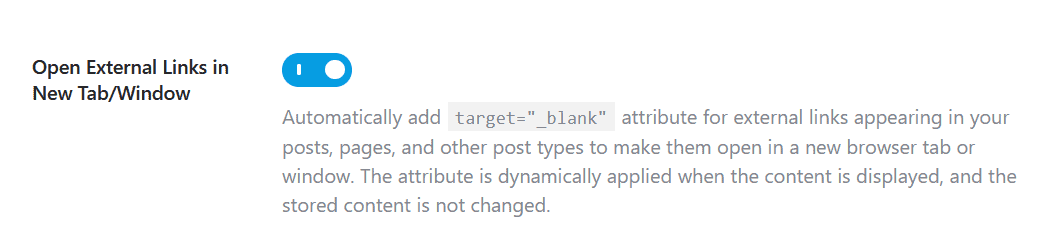
If you use an SEO plugin like Rank Math, there is also a setting under RankMath SEO > General Settings > Links that allows you to automatically open all external links in a new tab, which can save time and ensure consistency across your site.
A step-by-step approach to link cleanup
If you suspect your blog has accumulated link problems over the years, here’s a systematic way to tackle the cleanup:
- Start with a full site audit. Use Screaming Frog, Ahrefs, or a similar crawler to get a baseline. If you’d rather have someone else handle the audit, The Blog Fixer’s Site Scan checks for over 15 common SEO and compliance issues, and it’s geared specifically toward problems that can actually be fixed, not just flagged. At $50 (with a $50 credit toward any fix), it’s a low-risk way to understand the full scope of what needs attention.
- Fix broken links first. These are the highest priority because they directly hurt user experience. Readers can forgive a lot of things, but clicking a link and landing on a 404 page isn’t one of them.
- Add nofollow to monetized links. This is your biggest SEO risk. If Google sees that your affiliate links are passing PageRank, a manual action could cost you months of organic traffic. This is where a bulk fix across your entire blog makes the most sense.
- Clean up redirect chains. Update internal links to use current URLs. This improves crawl efficiency and shaves milliseconds off page loads, which adds up on pages with lots of internal links.
- Standardize link targets. Make sure affiliate links open in new tabs and everything else opens in the same tab. This is lower priority than the others, but it’s a polish that reduces tab fatigue and improves the reader experience.
- Set up ongoing monitoring. Install a broken link checker or schedule regular site crawls to catch new issues before they accumulate. Link rot is constant, and old posts will keep developing problems as the web changes around them.
If the audit reveals that you’re dealing with link problems across hundreds of posts, The Blog Fixer can handle the bulk of the cleanup, from the initial site scan through the nofollow, redirect, and link target fixes. Broken links are the one area where you’ll need to stay involved, since picking replacement links requires knowing your content. But everything else can run automatically across your entire blog, saving you what would otherwise be hundreds of hours of manual work.
FAQs


 English
  French