
Why Your WordPress Fonts Are Killing Your Page Speed (And How to Fix It)


Here’s something most WordPress site owners don’t realize: those beautiful custom fonts you’re using? They’re probably costing you rankings.
A single font family with multiple weights can easily outweigh your entire CSS file. And because browsers won’t show text until fonts load (or at least, that’s the default behavior), slow fonts create a domino effect that tanks your Core Web Vitals scores.
Google has made this pretty clear: if your fonts are slow, your rankings suffer. First Contentful Paint (FCP), Largest Contentful Paint (LCP), and Cumulative Layout Shift (CLS) all take a hit when fonts aren’t optimized. According to Google’s web.dev documentation, delayed text rendering is one of the most common performance bottlenecks on modern websites.
Let me walk you through how to fix this properly.
The real cost of external fonts
When you load fonts from Google Fonts or Adobe Typekit, you’re adding several expensive operations:
- DNS lookups to establish connections
- TLS handshakes for secure communication
- Downloading external CSS files
- Then downloading the actual font files
Each of these steps adds latency. On mobile connections, where performance issues are amplified, this delay becomes painfully obvious to users.
The DebugBear performance team found that web fonts are among the top contributors to poor Core Web Vitals scores, particularly on mobile devices. And if you’re running an ecommerce site, every 100ms of delay can cost you conversions.
The WordPress font problem nobody talks about
Here’s what typically happens: you install a theme builder like Elementor or Divi. Maybe you add a theme. Perhaps a form plugin or two.
Each of these loads its own fonts. Often from Google. Sometimes redundantly.
I’ve audited WordPress sites loading 15+ font files without the owner having any idea. The theme loads Poppins. A plugin loads Roboto. The page builder adds its own. Before you know it, you’re requesting hundreds of kilobytes of font data, much of which goes unused.
This creates a cascade of problems:
First, your page weight balloons. Second, you’re making multiple requests to Google’s servers. Third, text rendering gets delayed while fonts download. Fourth, when fonts finally swap in, your layout shifts and CLS spikes.
Your PageSpeed Insights score drops. Your mobile rankings suffer. And users bounce because the page feels slow.
The proven solution: self-host, preload, limit
After reviewing recommendations from web.dev, DebugBear, and WordPress performance experts, the consensus is clear: self-host your fonts, preload critical ones, and limit variants.
This isn’t theoretical. FastPixel’s optimization approach includes asynchronous font loading as a core feature precisely because the performance gains are so substantial.
Let’s implement this step by step.
Step 1: Figure out what’s actually loading
Open Chrome DevTools (F12), go to the Network tab, and filter by “font”. Reload your page.

You’ll see every font file being requested. Note:
- Which families are loading (Roboto? Inter? Poppins?)
- How many weights (300, 400, 500, 700?)
- What formats (WOFF2 is what you want)
- Where they’re coming from
You’ll probably see requests to fonts.googleapis.com and fonts.gstatic.com. You might also spot @import statements in your CSS pulling in Google Fonts.
All of this needs to change.
Step 2: Stop themes and plugins from loading fonts
Most WordPress themes and builders load Google Fonts automatically. You need to shut this down.
For Divi: Divi has the option to disable Google Fonts under Divi > Theme Options.
For Elementor: Navigate to Elementor > Settings > Advanced > and select Disable under Google Fonts.
For other themes/plugins: You can dequeue Google Fonts using:
add_action('wp_enqueue_scripts', function() {
    wp_dequeue_style('google-fonts');
}, 100);
If you prefer avoiding code, plugins like Perfmatters or Asset CleanUp offer controls for this.
This single change often shaves 150-300ms off mobile FCP and LCP times.
Step 3: Download and self-host only what you need
Go to Google Webfonts Helper. It’s a fantastic tool that makes downloading optimized fonts painless.
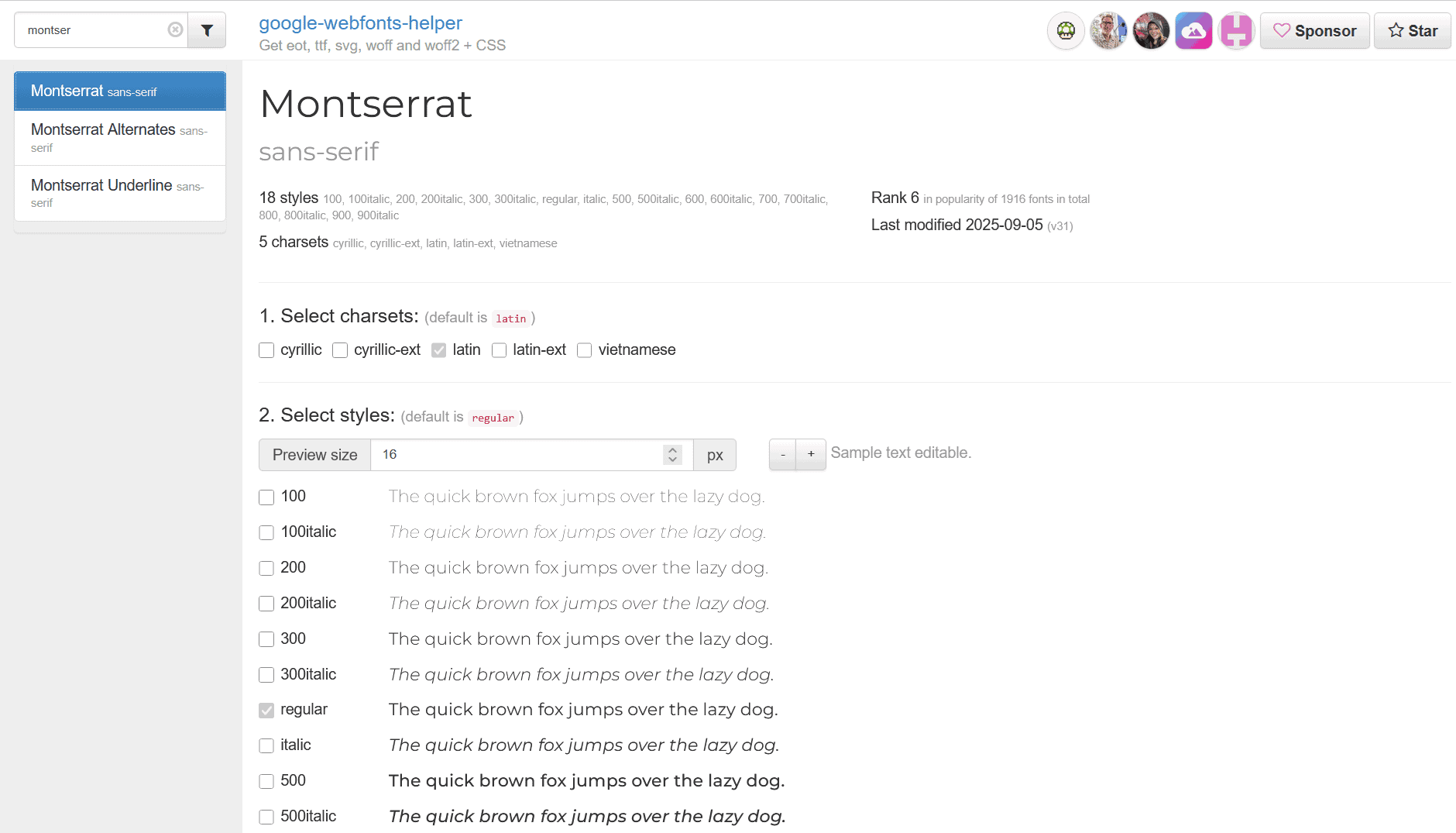
Select your font and download only:
- The weights you actually use (usually just 400 and 700)
- The Latin subset (unless you genuinely need Cyrillic or Greek)
- WOFF2 format (it offers up to 30% better compression than WOFF)
Upload these files to /wp-content/uploads/fonts/ or your child theme’s /assets/fonts/ directory.
Step 4: Add proper @font-face declarations
In your child theme’s style.css or via Appearance > Customize > Additional CSS, add:
@font-face {
  font-family: 'Inter';
  src: url('/wp-content/uploads/fonts/Inter-Regular.woff2') format('woff2');
  font-weight: 400;
  font-style: normal;
  font-display: swap;
}

@font-face {
  font-family: 'Inter';
  src: url('/wp-content/uploads/fonts/Inter-Bold.woff2') format('woff2');
  font-weight: 700;
  font-style: normal;
  font-display: swap;
}
The font-display: swap property is important. It tells the browser to show text immediately using a fallback font, then swap to your custom font once it loads. This approach prevents the “flash of invisible text” (FOIT) and significantly improves FCP.
Step 5: Preload critical fonts
Preloading makes a dramatic difference because it tells the browser to download fonts early, before the CSS is fully parsed.
In WordPress, you can preload fonts by injecting a <link rel="preload"> tag into the document head.
For example, add this to your functions.php:
add_action('wp_head', function() {
    echo '<link rel="preload" href="/wp-content/uploads/fonts/Inter-Regular.woff2" as="font" type="font/woff2" crossorigin>';
}, 1);
A few important details to keep in mind:
- Always preload the exact font file that is actually used. The preload URL must match the
srcvalue defined in your@font-facerule. If it doesn’t, the browser will download the font twice. - Use
woff2only, unless you have a very specific reason not to. Other formats are rarely needed today. - Include
crossoriginif the font is served with CORS headers or from a different origin. This is required for the preload to be honored.
You should only preload fonts that are needed immediately on first paint, such as:
- Hero headings
- Navigation menus
- Main body text visible above the fold
Avoid preloading:
- Bold, italic, or alternate weights that are not visible on load
- Fonts used only further down the page
- Icon fonts or decorative fonts
Google explicitly warns against preloading too many fonts, as it can actually slow down the page by consuming bandwidth needed for other critical resources.
As a rule of thumb, 1–2 font files preloaded is usually enough for most pages.
Step 6: Use smart fallback fonts
To minimize layout shift (CLS), your fallback font should have similar metrics to your custom font.
For a modern sans-serif like Inter, use:
font-family: "Inter", -apple-system, BlinkMacSystemFont, "Segoe UI", Roboto, "Helvetica Neue", Arial, sans-serif;This stack prioritizes fast-loading system fonts that are already available on the user’s device. Text renders immediately using a similar-looking font while the Inter web font is loading.
When the font swap occurs, the visual change is subtle because these system fonts have comparable proportions and spacing to Inter, keeping layout shift to a minimum.
For even better results, you can:
- Match
font-weightvalues that actually exist in the fallback fonts - Avoid large
letter-spacingorline-heightdifferences between fallback and custom fonts - Combine this with
font-display: swaporoptionalin your@font-facerules
Used together, smart fallback fonts and controlled font loading dramatically reduce CLS without sacrificing typography quality.
Step 7: Preconnect if you must use external fonts
If a theme or plugin forces the use of external fonts like Google Fonts and you cannot disable or self-host them, adding preconnect hints can reduce font loading delays.
preconnect tells the browser to establish the network connection early. That includes DNS lookup, TCP handshake, and TLS negotiation. When the font request happens later, the connection is already open.
In WordPress, the safest way to add preconnect links is via functions.php, not by editing header.php directly. This avoids losing changes during theme updates.
Add the following:
add_action('wp_head', function () {
    echo '<link rel="preconnect" href="https://fonts.googleapis.com">';
    echo '<link rel="preconnect" href="https://fonts.gstatic.com" crossorigin>';
}, 1);
Important details:
fonts.googleapis.comserves the CSSfonts.gstatic.comserves the actual font filescrossoriginis required forfonts.gstatic.com, otherwise the preconnect is ignored
If you are using a child theme, place this code in the child theme’s functions.php.
If a performance plugin already manages resource hints, check whether it supports adding custom preconnect URLs. Many caching and optimization plugins, like WP Rocket, can handle this without custom code.
When to use preconnect:
- A plugin hardcodes Google Fonts and cannot be disabled
- You cannot self-host the fonts for technical or maintenance reasons
When not to use it:
- Fonts are fully self-hosted
- Google Fonts have been disabled
- The page does not actually load external fonts
Preconnect should be treated as a fallback optimization. If you have already self-hosted your fonts as described in earlier steps, preconnect is unnecessary.
Self-hosting beats preconnect every time, but preconnect is still better than doing nothing when external fonts are unavoidable.
Step 8: Test and verify the improvements
After implementing these changes, test your site:
- PageSpeed Insights – Prioritize mobile results, since mobile CPUs and networks amplify font loading issues. Pay close attention to font-related opportunities and diagnostics.
- GTmetrix – Useful for inspecting the request waterfall, font file sizes, and whether fonts are loaded early or blocking rendering.
- WebPageTest – Ideal for deep analysis of render timing, connection setup, and visual progress. The filmstrip view clearly shows font swap behavior.
- Chrome DevTools Lighthouse – Good for quick local audits and catching remaining font warnings directly in the browser.
Look for improvements in:
- LCP (should drop)
- FCP (faster text rendering)
- CLS (reduced layout shifts)
- Total page weight (fewer kilobytes)
- Number of requests (fewer font files)
If you’re using caching or optimization plugins, always:
- Clear all caches after making changes
- Test in an incognito window or with cache disabled
- Re-run tests after cache warm-up to get realistic results
If everything is configured correctly, improvements should be immediate and measurable.
If you’re using a caching solution like FastPixel, these optimizations stack with its automatic CSS and JavaScript optimization for even better results.
Boost performance with FastPixel!
Optimize loading times, enhance user experience, and give your website the performance edge it needs.
The bottom line
Font optimization isn’t sexy. It’s not going to transform your site’s design or add new features. But it’s one of the best performance improvements you can make.
Self-hosting fonts, using WOFF2 format, preloading critical files, and implementing font-display: swap will consistently improve your Core Web Vitals. Better Core Web Vitals mean better rankings, faster perceived load times, and happier users.
The sites that rank well in Google aren’t necessarily the prettiest. They’re the ones that load fast and provide great user experiences. Optimized fonts are a big part of that equation.
Take an hour this week to audit your fonts and implement these changes. Your PageSpeed score will thank you. More importantly, so will your users.


 English
  French